
Lightroom Photo & Video Editor
AdobePhotography
4.517.10K Reviews
- Version
- 12.0.01
- Installs
- 100.00M
- Age Rating
- Everyone
Screenshots

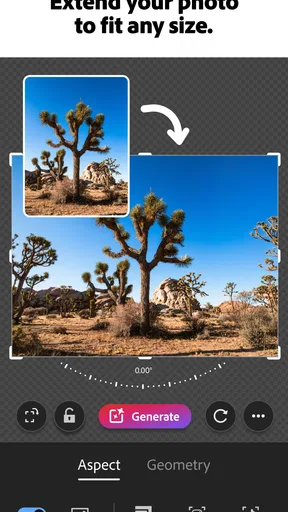



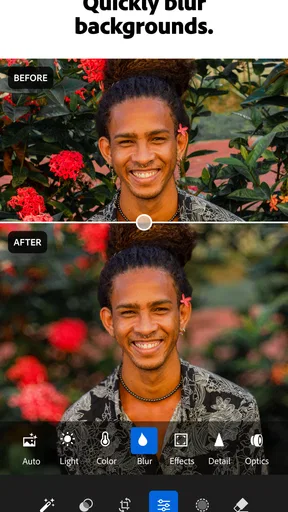
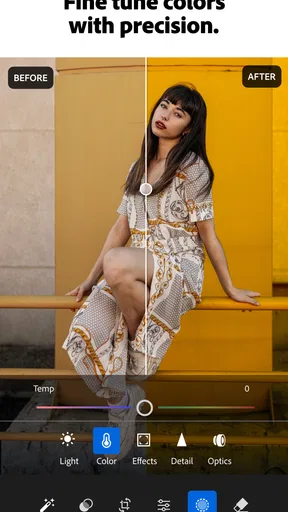

Our Review of Lightroom Photo & Video Editor
 Analysis by Appyee
I use Lightroom when a photo needs more than a quick filter but I still want to edit it on my phone. It suits the familiar cycle of taking several pictures, choosing the strongest one, and making small, deliberate corrections before sharing. The key appeal is control: instead of relying on a single look, I can work on light, color, framing, and selected parts of an image. That makes Lightroom Photo & Video Editor useful for everyday photography, though it is more involved than a one-tap editor.
Getting a consistent result
For a straightforward portrait or travel shot, I start by correcting the crop and overall brightness before touching the color. That order matters: a tighter frame can change the balance of a picture, and adjusting its color first may lead me to redo the work. I then make modest exposure and color changes, checking the result against the original so skin, skies, and food still look believable. The app’s reputation makes sense here; Adobe’s photography app is flexible enough for a careful edit without requiring a desktop workflow.
Build a useful editing baseline
The editing range covers everyday needs such as cropping and rotating as well as more involved exposure and color work. I find it helpful to treat presets as starting points, not finished answers. A preset can set a direction quickly, but the same look will not suit a bright lunch photo and a dim indoor portrait equally well. After applying one, I check whether it has pushed the image too far and make a few restrained corrections rather than stacking effects just because they are available.
Selective Adjustments are especially valuable when the whole image does not need the same treatment. For example, I might want a subject to stand out while leaving a bright background alone. A local change can be more natural than making the entire frame brighter or more saturated. The trade-off is that selective editing takes more attention than tapping a preset; if I am only fixing a casual snapshot, a simpler editor may be quicker.
Settings and habits that save rework
Before settling into an editing routine, I check how the app is handling my photos and whether my intended workflow depends on cloud syncing. Lightroom can sync edits across devices with an Adobe Creative Cloud subscription, which is useful if I want to begin on a phone and continue elsewhere. I would not assume that every part of a multi-device workflow is available in the free experience: the app is free to download, but it also offers in-app purchases. If device-to-device continuity matters to you, check the subscription and account setup that applies before building your routine around it.
I also avoid editing by memory alone. When I have several photos from the same outing, I use one image as a visual reference and compare the others against it, rather than trying to recreate a look from scratch on each one. That small habit helps a set feel related without forcing every frame to have identical brightness or color. It is particularly useful for travel pictures taken in changing light, where copying the same treatment blindly can make one photo look washed out and another too dark.
Faster choices for portraits, trips, and meals
A practical everyday example is a portrait taken near a window: I would first straighten and crop it, then make a restrained overall light adjustment, and finally use a selective change if the face needs a little more attention than the background. I would stop once the person looks natural. Smooth, even skin or a dramatic glow may be tempting, but heavy-handed edits are easy to notice, especially when the original lighting was soft and flattering already.
For food, the temptation is to push warmth and color until a dish looks more vivid than it did in person. I prefer to make small changes and keep an eye on whites, plates, and table surfaces; if those turn strongly yellow or blue, the adjustment has probably gone too far. On a trip, I might use a preset to get several landscape photos into a similar mood, then correct each frame individually. The preset saves a first round of work, while the individual check prevents a shaded street and a sunlit viewpoint from ending up with the same treatment for the wrong reasons.
These habits suit people who enjoy refining their pictures, want a consistent visual style, or regularly work with portraits, food, and travel scenes. If your priority is adding a playful sticker, making a collage, or getting an instant social-ready effect, a simpler, more template-focused photo app may be a better fit. Lightroom’s strength is considered image editing, not turning every picture into a graphic design project.
Where video fits—and where it does not
The app also supports video adjustments using the same general editing approach as its photo tools. That is handy when I want a short clip to sit beside still images without looking as though it belongs to a completely different set. It is best thought of as a way to bring a visual treatment closer together, rather than as a reason to choose Lightroom as a full video-editing workspace. If your main goal is arranging clips into a detailed sequence, adding titles, or building a finished video, a dedicated video editor is the more appropriate tool.
Trade-offs before you commit
Lightroom is rated for Everyone and is available without an upfront purchase, while optional in-app purchases range from $0.49 to $119.99 per item. That range makes it worth checking what a paid option actually unlocks for your own routine instead of assuming the free download includes every feature you may want. Adobe is the developer, and the app has a 4.6 average from around 3.5 million ratings, with over 100 million installs. Those figures suggest broad appeal, but they do not tell you whether its editing style or paid workflow suits you personally.
The current version is 11.1.2, and the app requires Android 8.0 or later. On iOS, it is also available as a mobile photography editor. It can feel like more app than a person needs if they only crop an occasional picture, and working through several adjustments on a small screen is less comfortable than editing on a larger display. I also treat cloud syncing as a convenience with a subscription-dependent setup, not as a reason to assume my preferred workflow will automatically be free.
Compared with the usual quick-edit alternatives, Lightroom asks for more involvement but gives me more control over how the final image comes together. A built-in phone editor can be faster for a basic crop or brightness fix; a highly stylized editor may be more fun when I want effects rather than careful corrections. Lightroom sits between those approaches: it can be approachable for a beginner, but it rewards patience and a repeatable method. The best reason to use it is not the number of tools, but the ability to make a photo feel finished without applying the same look to everything.
A verdict for people who like to refine
Lightroom is a strong choice if you want to learn what small changes do and build a dependable editing habit around your own pictures. I would start with one portrait, one travel image, and one food photo, then notice which controls I actually use before deciding whether a paid option is worthwhile. That trial gives a more honest answer than collecting presets or chasing a dramatic before-and-after effect.
If you want effortless edits with almost no decisions, you may be happier with the editor already built into your phone. If you enjoy adjusting tone, framing, and selected areas—and sometimes want your video clips to share a similar look—Lightroom is worth trying. For me, its best results come from restraint: make the correction the picture needs, compare it with the original, and stop before the editing becomes more noticeable than the moment.
When I first downloaded Lightroom, I was struck by its sleek and intuitive design. The app opens to a home screen that’s clean and uncluttered, making navigation feel like a breeze. If you’re familiar with Adobe’s desktop version, you’ll feel right at home here. And if not, don’t worry – the app is designed to be user-friendly, even for beginners.
Features Galore
The main attraction here is the sheer range of editing tools available at your fingertips. You’ve got everything from basic cropping and rotating to advanced color grading and exposure adjustments. The app’s Selective Adjustments feature is particularly nifty, allowing you to make precise changes to specific parts of your photo. It’s like having a mini Photoshop on your phone.
And let’s not forget about the Presets. Lightroom offers a plethora of pre-made presets that can transform your photos with a single tap. Whether you’re going for a vintage vibe or a moody monochrome, there’s something here for everyone.
Video Editing Capabilities
While Lightroom is predominantly known for its photo editing prowess, it’s also made strides in video editing. The app allows you to apply the same filters and adjustments to your videos as you would with photos. This feature is perfect for creating cohesive content across your social media platforms.
Cloud Syncing and Backup
One of the standout features for me is the cloud syncing capability. With an Adobe Creative Cloud subscription, your edits are automatically backed up and synced across all your devices. This means you can start editing on your phone and pick up where you left off on your tablet or desktop. It’s seamless and saves a ton of time.
Community and Learning
Lightroom isn’t just an editing tool; it’s a community. The Discover section is packed with tutorials and inspiration from fellow photographers. It’s a great way to learn new techniques and get inspired by the work of others. Plus, you can share your own work and get feedback, which is invaluable for growth.
Performance and Usability
In terms of performance, Lightroom runs smoothly on both Android and iOS. I’ve yet to experience any lag or crashes, even when working with high-resolution files. The app is regularly updated, ensuring it stays compatible with the latest devices and operating systems.
Final Thoughts
All in all, Lightroom is a powerhouse app that’s well worth the investment. Whether you’re a seasoned pro or just starting out, the app offers a comprehensive suite of tools to enhance your photos and videos. It’s user-friendly, packed with features, and backed by a vibrant community.
If you’re looking to take your mobile photography to the next level, I’d highly recommend giving Lightroom a try. It’s more than just an app; it’s a gateway to unleashing your creativity.
Privacy and Permissions
See what permissions an app requests and how it handles your data.
- Identity
- find accounts on the device, add or remove accounts
- Contacts
- find accounts on the device
- Location
- approximate location (network-based), precise location (GPS and network-based)
- Photos/Media/Files
- read the contents of your USB storage, modify or delete the contents of your USB storage
- Storage
- read the contents of your USB storage, modify or delete the contents of your USB storage
- Camera
- take pictures and videos
- Wi-Fi connection information
- view Wi-Fi connections
- Other
- view network connections, create accounts and set passwords, full network access, run at startup, use accounts on the device, control vibration, prevent device from sleeping, Google Play license check
How Lightroom Photo & Video Editor Compares
Full ComparisonChoose Picsart for varied photo and video creativity, Photoshop Express for quick, approachable edits, or Lightroom for deeper color work and edits that preserve originals.
| App | Developer | Rating | Price |
|---|---|---|---|
 Picsart AI Photo Editor, Video | PicsArt, Inc. | 3.9 | Free |
 Photoshop Express Photo Editor | Adobe | 4.6 | Free |
 Lightroom Photo & Video EditorThis App | Adobe | 4.5 | Free |
Verdict
Strengths of Lightroom Photo & Video Editor
- Intuitive user interface for quick edits.
- Wide range of filters and presets.
- Non-destructive editing for originals.
- Seamless syncing across devices.
- Advanced color correction tools.
Limitations of Lightroom Photo & Video Editor
- Requires subscription for full features.
- Can be resource-intensive on older devices.
- Limited features in free version.
- Occasional lag during video editing.
- Steep learning curve for beginners.
Other Releases by Adobe
View All
Adobe Acrobat Reader: Edit PDF
Productivity4.5

Photoshop Express Photo Editor
Photography4.6

Adobe Scan AI PDF Scanner, OCR
Business4.6

Adobe Express: AI Photo, Video
Art & Design4.6
Similar Picks in This Category
View All
Google Photos
Google LLC4.4

Gallery
Google LLC4.2

Picsart AI Photo Editor, Video
PicsArt, Inc.3.9

B612 AI Photo&Video Editor
SNOW Corporation4.1

BeautyPlus-Selfie Photo Editor
PIXOCIAL TECHNOLOGY (SINGAPORE) PTE. LTD.4.5

Remini - AI Photo Enhancer
Bending Spoons4.1
Frequently Asked Questions
What are the main features of Lightroom Photo & Video Editor?
Lightroom Photo & Video Editor offers a comprehensive set of tools for editing both photos and videos. Key features include advanced color grading, exposure adjustment, cropping, and a variety of filters and presets. Additionally, it provides tools for retouching, organizing, and sharing your work directly from the app.
Is Lightroom Photo & Video Editor free to use?
Lightroom offers a free version with basic editing tools and features. However, for more advanced functionalities like selective editing, premium presets, and cloud storage, a subscription is required. The app offers different subscription plans, including monthly and annual options, which unlock these premium features.
Can Lightroom handle RAW files?
Yes, Lightroom Photo & Video Editor supports RAW files, making it an excellent choice for professional photographers. The app allows you to import, edit, and process RAW images, giving you more flexibility and control over your edits. This feature is particularly useful for preserving image quality during the editing process.
Does Lightroom sync across devices?
Lightroom offers cloud syncing capabilities, allowing you to access your projects across multiple devices seamlessly. With a subscription, you can edit on your phone, tablet, or desktop, and all changes are automatically saved and synced, ensuring your work is always up-to-date and accessible wherever you are.
Is Lightroom suitable for beginners?
While Lightroom offers powerful tools that cater to professional photographers, its intuitive interface makes it accessible to beginners as well. The app includes tutorials and guided edits, helping new users learn the basics of photo and video editing. Its user-friendly design ensures that even those new to editing can create stunning visuals.
